When a File Is Too Big for Email
One of the tickets I got recently started with someone trying to email a 1 GB photo album. They attached everything, watched it struggle, waited forever, tried again, and eventually gave up. They thought email was broken.
It was not.
They were just trying to send the file the wrong way.
The Simple Fix
The fix is usually simple: stop treating the file like an attachment. Put it in the file service you already use, then send a link instead.
In Google Drive, OneDrive, and Dropbox, the email carries a link to the real file, not a second copy. That means the other person is opening the actual file you shared, and you can choose whether they can only view it or also edit it.

Google Drive sharing lets you send a link to the real file instead of attaching another copy.
Source: Google Help - Upload files and folders to Google Drive and Google Drive product page
In practice, it usually looks like this:
- Put the file or folder in Google Drive, OneDrive, or Dropbox.
- Create a share link.
- Choose view or edit access.
- Paste that link into the email.
Why This Works Better
This saves time with a PDF that is too big, a phone video, a batch of photos for a quote or insurance claim, a folder for an accountant, or one file that several people need to review without emailing six versions back and forth.
It also works better because everyone is using one real file in one place. If something changes, you update it once and keep using the same link.
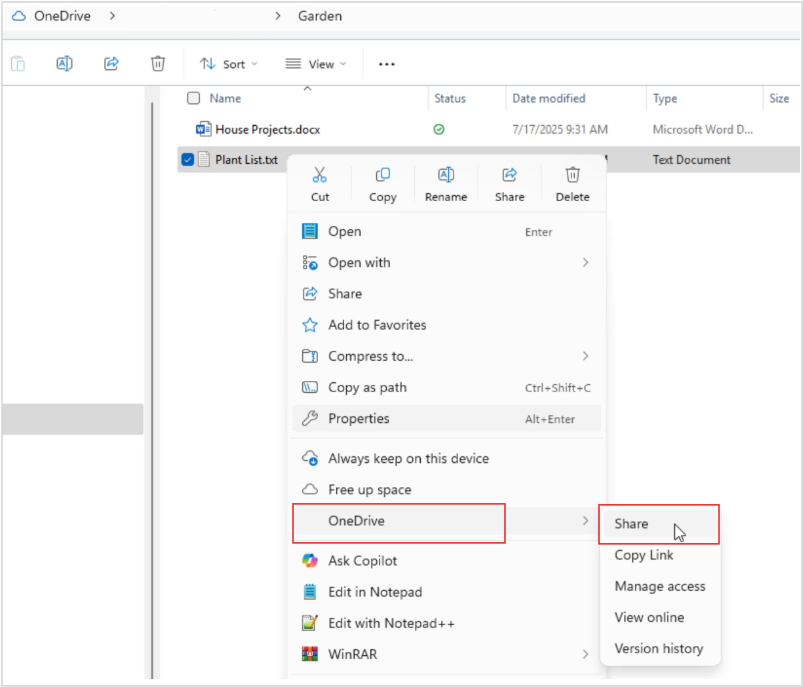
OneDrive sharing from Windows lets you send a link instead of attaching the whole file.
Source: Microsoft Support - Share files in Windows
Bottom Line
When an attachment is too big, do not fight the email. Send access to the real file instead.
Ask AI This
“What is the easiest way to send a large PDF, video, or folder using Google Drive, OneDrive, or Dropbox, and how do I choose view-only or edit access?”