Stop Collecting Client Files by Email
One of the tickets I saw recently started with an office manager trying to collect files from a client by email. She needed photos, a few PDFs, and some paperwork to finish the job. What she got instead was the usual mess: one email with the wrong files, one reply with nothing attached, a few phone pictures sent separately, and then the note nobody wants to read: “the rest are too big to send.”
By the time the ticket came in, the real problem was obvious. The client was not the problem. Email was.
Email is fine for messages. It is bad at collecting a pile of files.
The Simple Answer
If you need files from someone, send one upload link instead of asking for attachments.
For a lot of Microsoft 365 businesses, the easiest version is OneDrive File Request. Microsoft calls the button Request files. You make a folder, create one request link, send it to the client, and they upload everything into the right place.
There is one catch. If you do not see Request files, your IT admin may need to enable it. If that option is not available, the backup method is to share an empty folder with edit access so the client can upload there instead.
Just be careful: with that method, the client can also open what is already in that folder. That is why it should be empty and made just for that job.
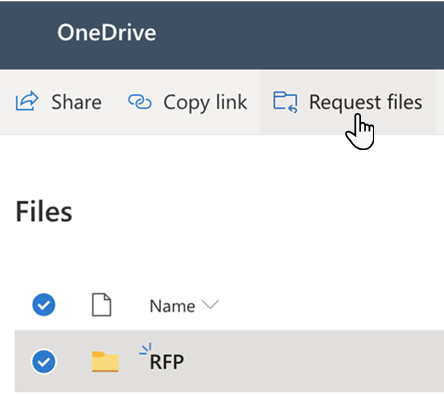
In OneDrive, choose the folder for the job, then use Request files to create one upload link.
Source: Microsoft Support - Create a file request
The Easiest Way to Use It
Make a folder for the job first. Then send one request link to the client. They upload everything there, and you stop chasing files through five different replies.
That works better than email for jobsite photos, receipts, onboarding paperwork, signed forms, quote attachments, claim documents, and ID photos or other supporting documents. It is especially useful when the sender is on a phone or the files are too large for email.
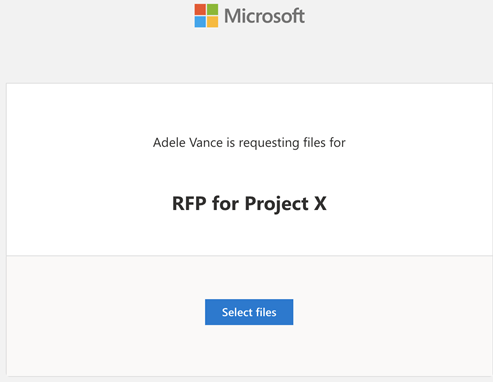
This is the simple upload page the client sees from the file request link.
Source: Microsoft Support - Create a file request
A Small Bonus After the File Arrives
OneDrive already emails you when someone uploads to a file request folder. If you want something more specific, Microsoft 365 can also use a simple Power Automate alert when a file lands in that folder.
If the file is already in OneDrive, Copilot can help summarize it or answer questions about it. If your business uses Google Workspace and the file ends up in Google Drive, Gemini can do the same there. That part depends on your setup and plan, so treat it as a bonus, not the main fix.
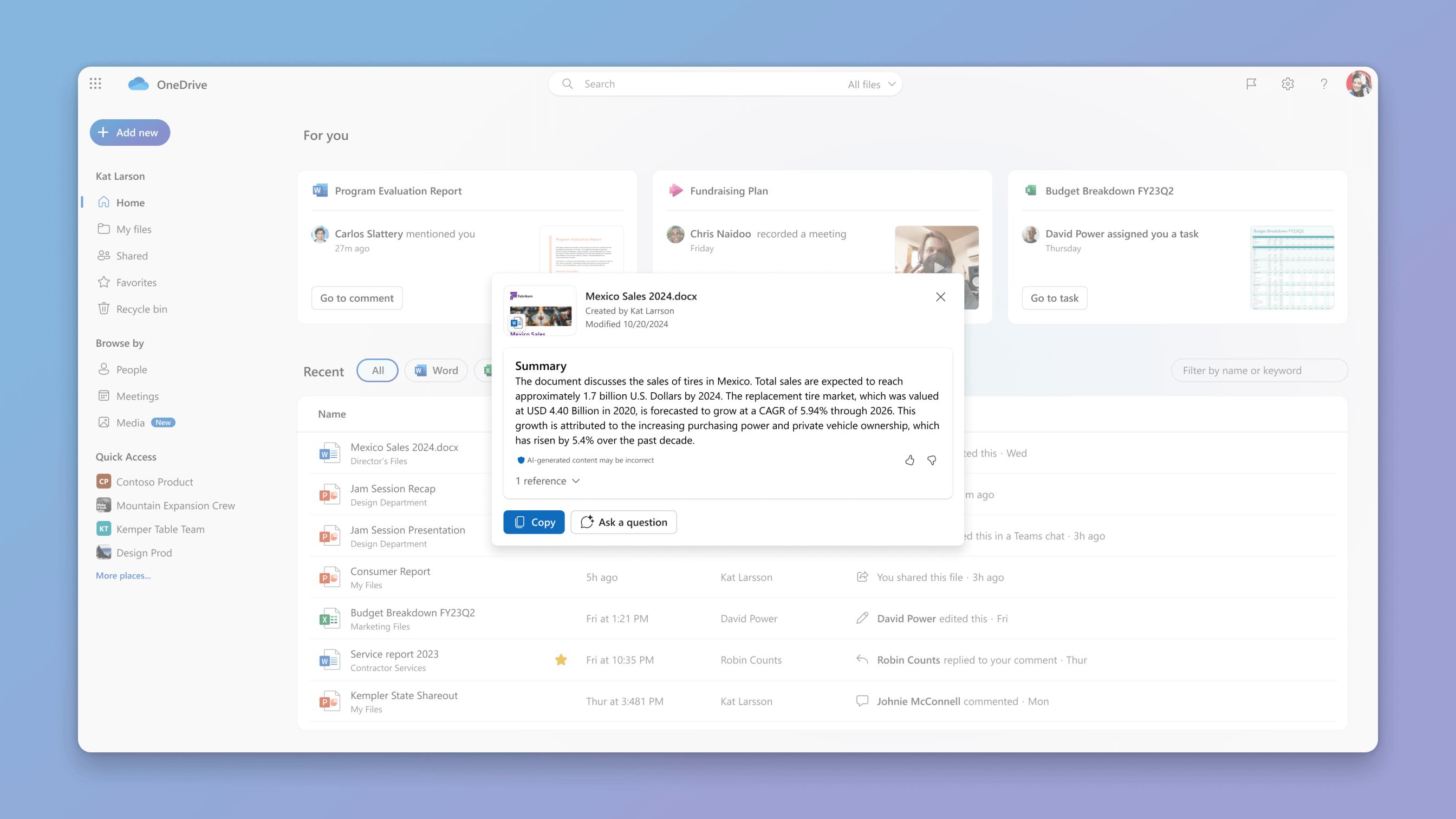
Copilot in OneDrive can summarize a stored file after it has been uploaded.
Source: Microsoft Support - Summarize your files with Copilot
Bottom Line
If you need files from someone, do not make email do a job it is bad at.
One upload link is simpler for the client, cleaner for the office, and much easier to keep organized than a chain of missing attachments.
Ask AI This
“We collect files from clients by email right now and it gets messy. Show me the simplest way to switch to one upload link in Microsoft 365 or Google Workspace, how to organize the folder, how to get notified when a file arrives, and how Copilot or Gemini could help summarize the files after upload. Keep it plain English and do not suggest extra paid tools unless there is a real gap.”