How to Build a Sales Helper Using the AI You Already Have
A lot of small business owners have the same problem with AI for sales: they know it can probably help with follow-ups, quote emails, and replies, but every time they open a blank chat they have to explain their business all over again.
That gets old fast.
The easier way is to set up one saved AI helper that already knows the basics: what you do, who you deal with, how you usually write, and what kind of messages you need help with most. Then, instead of starting from zero every time, you can drop in your notes and get a usable draft back much faster.
For a lot of businesses, that is enough. You do not need to go shopping for a special sales tool right away. If you already use Google, Microsoft, or ChatGPT, you may already have access to something that can do the job.
What This Actually Does
This is not about building some magical robot salesperson that closes deals while you go golfing.
It is much simpler than that.
You are setting up a saved AI helper for the parts of sales writing that tend to slow people down: follow-up emails after meetings, quote summaries, polite replies, and those messages that sit in drafts because you know what you want to say but cannot quite get started.
That is where this works well. It helps turn rough notes into a proper email. It helps clean up something you already wrote. It helps you respond without sounding stiff, vague, or like you swallowed a corporate brochure by mistake.
Why a Saved Helper Works Better Than a Regular Chat
A normal AI chat does not really know your business unless you keep telling it. That is why the results often sound generic. You ask for a follow-up email and get something full of empty phrases, strange assumptions, and wording you would never actually send to a client.
A saved helper is different because you give it your context up front. You tell it what your business does, what kinds of customers you usually deal with, how formal or casual you like to sound, and what you do not want it making up. That way, when you come back later and say, “We met today and they want a quote by Friday,” it already has enough background to give you something more useful.
That is the real benefit. Not “AI for sales” as a buzz phrase. Just less retyping, less fixing, and less staring at your screen.
What to Gather Before You Build It
Before you set anything up, take five minutes and gather a few simple things.
Find one or two real emails you have sent that sound like you on a good day. Write down your core services in plain English. Write down who your usual customer is. Then make a short note of anything you never want the AI to say.
That last part matters more than people think.
If you hate phrases like “I hope this email finds you well,” “just circling back,” or anything that sounds like it came from a sales webinar hosted by a man named Todd, say so. Otherwise the AI may drift in that direction, and then you are back to editing junk instead of saving time.
Building It in Gemini
If you use Google Workspace for Gmail, Docs, or Drive, the built-in version of this is called a Gem.
The setup is straightforward. You open Gemini, go to Explore Gems, and create a new one. Give it a simple name that makes sense to you, something like Sales Helper or Quote Email Assistant. Then write a short description of your business in plain English, explain what you want help with, and upload any useful files you have, like a service list, pricing sheet, quote template, or a few sample emails.
Once that is saved, you can go back to it any time you need help writing.
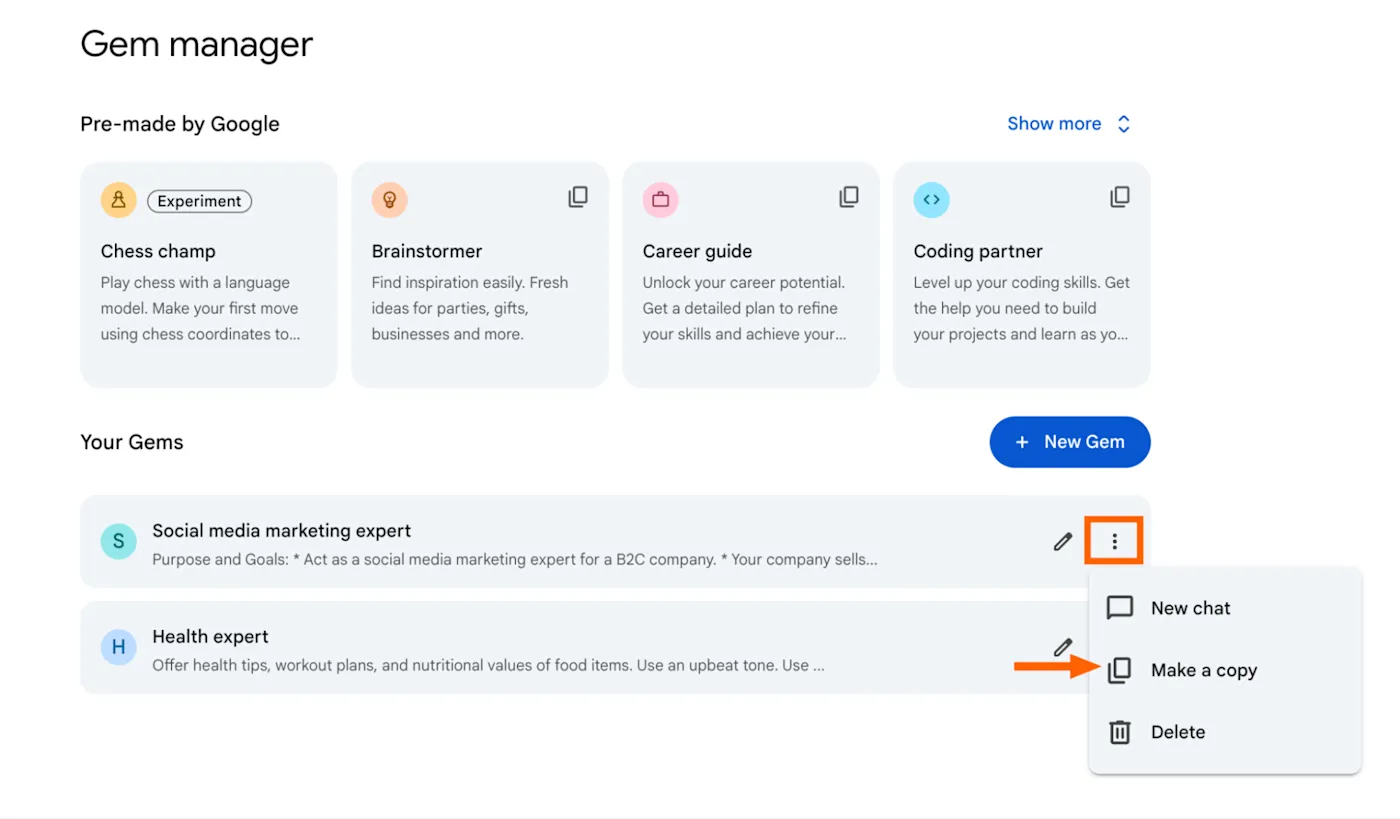
The main thing to remember here is that you do not need to write some perfect, technical setup. In fact, that usually makes things worse. Clear and simple is better. Tell it what you do, who you help, and how you want it to sound. That is enough to start.
Building It in Microsoft Copilot
If your business uses Microsoft 365 Copilot, you can do something similar in Copilot Studio, where this kind of helper is usually called an agent.
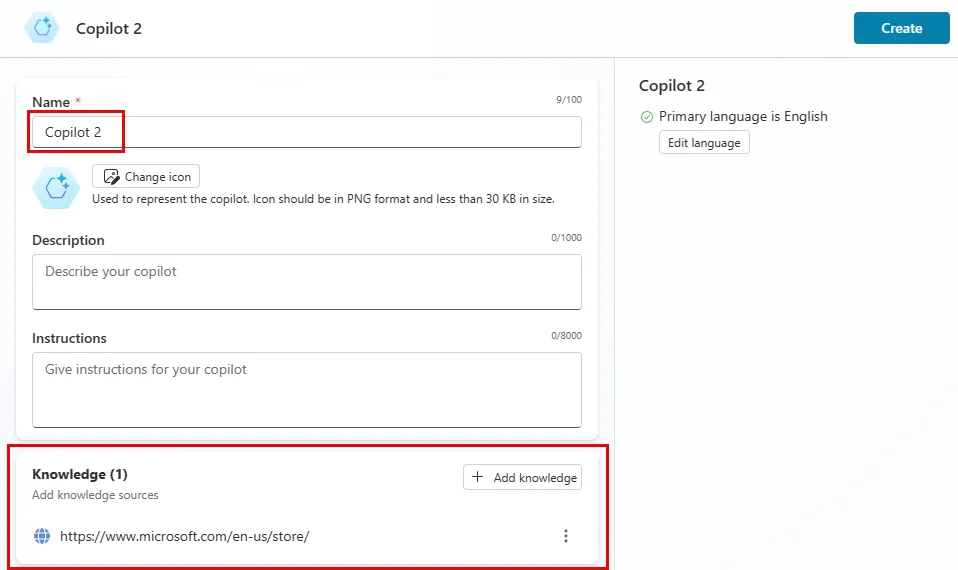
The process is much the same. You create a new agent, describe what you want it to help with, give it a simple name, and add reference material if that option is available in your setup. That could be things like service descriptions, standard proposals, pricing notes, or email examples.
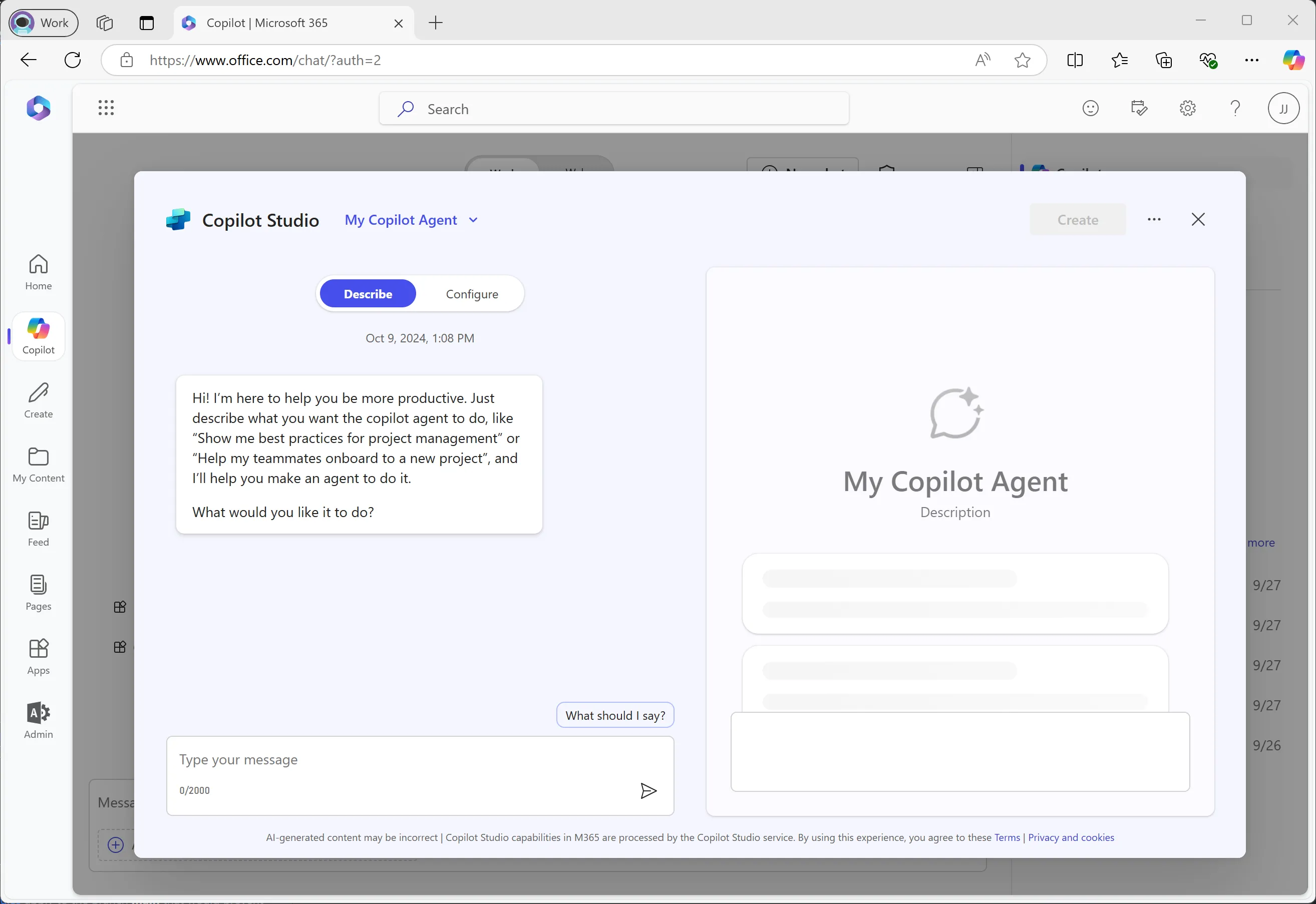
If you have the option to attach files or business reference material, that is worth doing. It gives the helper something real to work from instead of making it guess.
One important note here: not every Microsoft account has the same Copilot features. A lot of people hear “Copilot” and assume they automatically have the full business setup. They often do not. So if you go looking for this and the screens are not there, that may be the reason.
Building It in ChatGPT
If you use ChatGPT, the version of this is usually a custom GPT.
You open Explore GPTs, click Create, and then fill in the instructions with the basics of your business and what you want the helper to do. If you have files you want it to refer to, like service descriptions or sample emails, you can upload those too. Once it is saved, it sits there like its own dedicated helper whenever you need it.
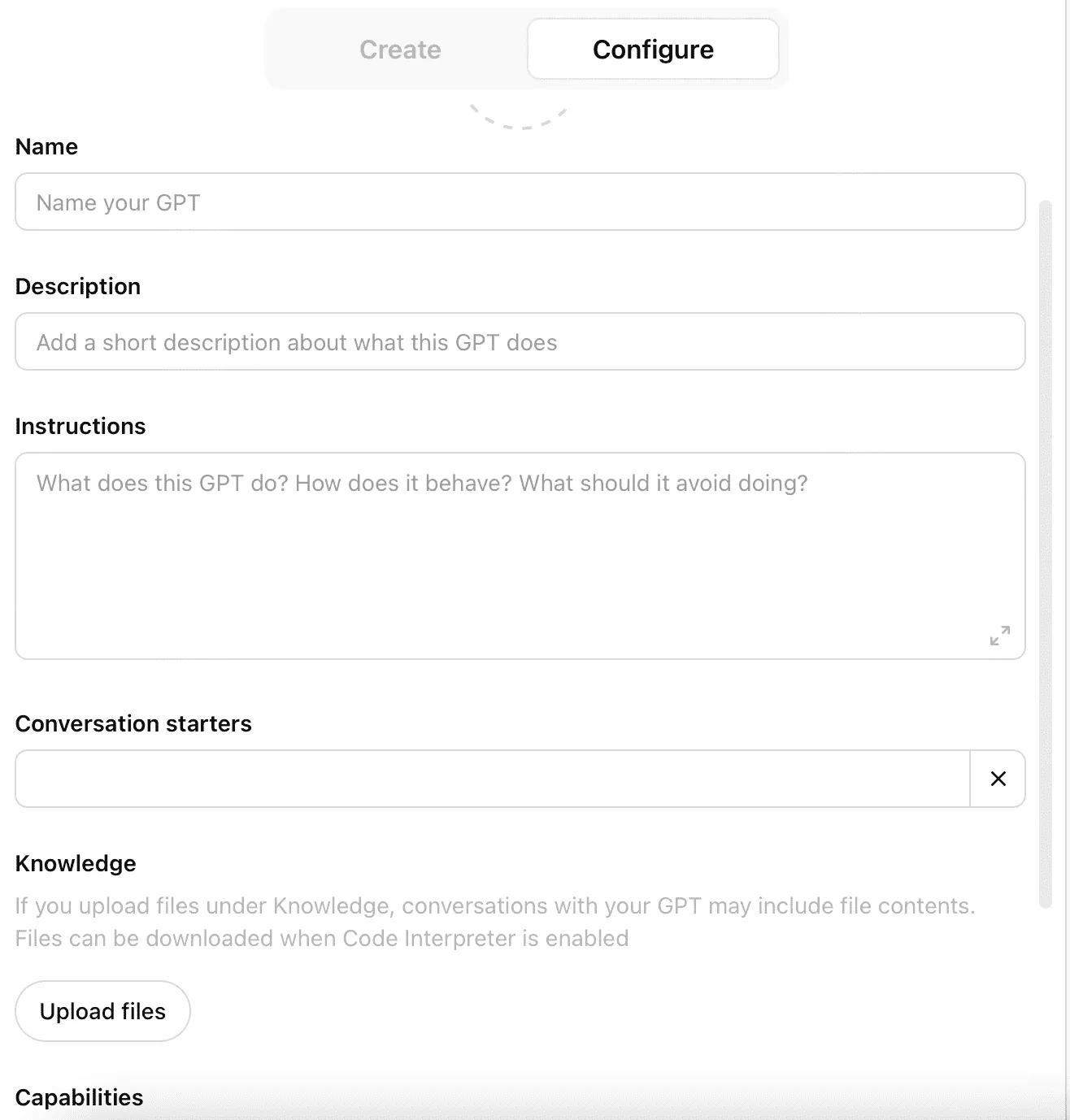
As with the others, the goal is not to impress the system with complicated instructions. The goal is to make it useful. Think plain language, not tech language.
What to Put in the Instructions
This is the part that makes the biggest difference.
Start with what your business actually does, but be specific. “We do renovations” is too vague. “We do kitchen and bathroom renovations for homeowners, usually between $25,000 and $80,000, and we do not take small repair jobs” is much better. The more specific you are, the less likely the AI is to drift into nonsense.
Then describe your typical customer in one sentence. That gives the writing a target. After that, tell it how you want to sound. The best way to do that is not by writing “professional but friendly,” because everyone says that and it does not mean much. A better move is to paste in one or two real emails you have written that already sound right.
Next, tell it what you actually want help with. Follow-up emails after meetings. Quote summary emails. Replies to common client questions. Maybe a gentle nudge when a customer goes quiet. Keep it grounded in real tasks.
Finally, tell it what not to do. Do not invent prices. Do not promise timelines unless you gave them. Do not sound pushy. Do not use cheesy sales language. Do not make your business sound bigger, fancier, or more polished than it really is.
That last part is important. Most bad AI writing is not bad because it is unclear. It is bad because it sounds fake.
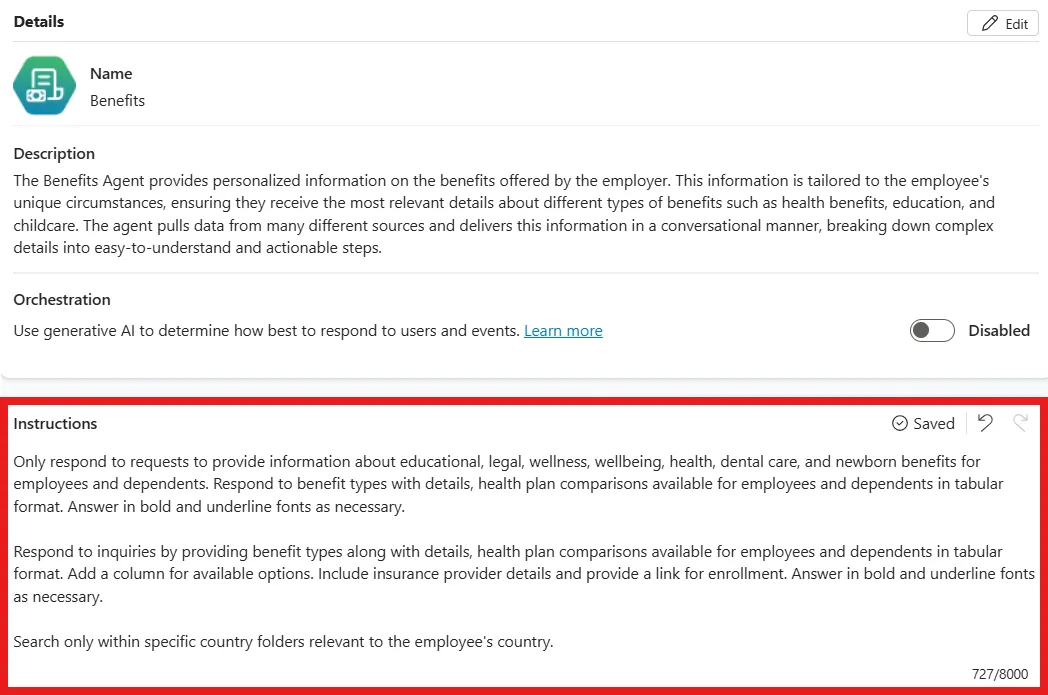
A Simple Starting Prompt
If you are not sure how to write the setup, here is a plain version you can adapt:
You are my sales writing helper for a small business. Help me write clear follow-up emails, quote summary emails, and client replies.
My business does [insert what you do].
My typical customers are [insert who they are].Write in a tone that is clear, warm, and professional without sounding stiff or salesy. Use plain language. Keep things practical and easy to read.
Do not use buzzwords, cheesy sales lines, or overly formal phrases. Do not invent pricing, timelines, or services I did not mention.
When I give you rough notes, turn them into a clean email that is ready for me to review and send.
That is enough to get moving. It does not have to be perfect. You can improve it later once you see where the drafts are still going off track.
How to Use It Day to Day
Once this is set up, the day-to-day part should stay simple.
You might paste in meeting notes and ask for a follow-up email. You might drop in a rough outline and ask it to turn it into a quote summary. You might paste a draft you wrote in a rush and ask it to make it sound more natural. You might ask for a reply that says yes to the work, but no to the unrealistic timeline.
That is where this becomes useful. Not as some grand system. Just as a faster way to get routine writing into decent shape.
What It Will Not Do for You
This setup can save time, but it still needs supervision.
It will not magically know every promise you made in a meeting unless you tell it. It will not automatically understand your pricing rules. It will not know what is legally safe to say in a contract-related email. And it will not always get the tone right on the first try.
You still need to read before sending.
That is not a flaw. It is just the reality of it. Think of this as a fast first draft tool, not a replacement for judgment.
When This Is Enough
For a lot of small businesses, this setup is enough to solve the real problem.
If you are mostly trying to stop wasting time on repetitive sales writing, stop putting off follow-ups, or stop rewriting the same kinds of emails every week, this is a practical fix. It is simple, it uses tools you may already have, and it gives you a chance to see what AI is actually good at before you start paying for something more specialized.
There are cases where a dedicated sales tool may make sense later, especially if you need deeper tracking, full pipeline automation, or tighter links into quoting systems and customer records. But that is a different level of problem.
Most people should try the simple version first.
The Bottom Line
If you already have Gemini, Copilot, or ChatGPT, start there.
Set up one saved helper. Give it the real basics of your business. Show it how you normally write. Then use it for the repetitive messages that keep slowing you down.
That is the practical move.
Not because it is exciting. Because it is useful.