Google Added AI Search. Here's How to Actually Use It — and Not Get Burned.
I’ve had a version of this conversation probably a dozen times over the past few months. A client asks me how to find something out about their computer, and I walk them through it, and halfway through they say: “Wait — can’t I just ask Google that?” And the answer now is yes. Kind of. But there’s a right way to do it.
Google has an AI built into it now. It’s been there for a while, and it’s gotten genuinely useful. If you haven’t started using it, you’re doing things the hard way. But jumping in without knowing a few basics is how you waste time, get bad answers, or worse — click on something you shouldn’t.
Here’s what you need to know.
What’s the “AI Button” in Google, Actually?
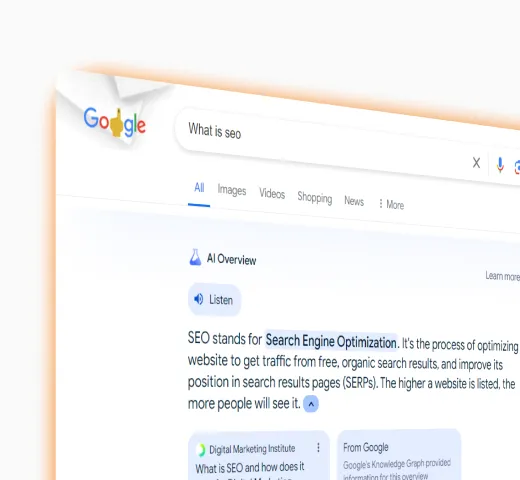
When you search something in Google these days, you’ll often see an “AI Overview” box near the top of your results — it’s the response that shows up before the regular blue links. It gives you a plain-English summary of whatever you asked, pulled together from multiple sources.
You can also go directly to gemini.google.com and have a full conversation with Google’s AI, Gemini. It’s like texting a very well-read assistant who’s read everything on the internet and will try to give you a straight answer.
Both are worth knowing about. The AI Overview in regular Google is great for quick lookups. Gemini is better when you want to have a back-and-forth — when your situation is a bit more complicated and you want to explain it properly.
The bottom line: You don’t need to install anything. If you’re using Google already, you’ve already got access to AI search. Just look for the AI Overview box, or visit gemini.google.com directly.
The Most Important Thing Nobody Tells You: Ask About Your Real Problem
This is where most people go wrong, and I’d kick myself if I didn’t spend some time on it because it changes everything about how useful AI search is for you.
There’s a concept in tech support called the XY problem. Here’s what it looks like in real life:
You want to hang a picture on your wall. You think you need a hammer. So you Google: “best hammer for drywall.”
But what you actually needed to know is: how do I hang a picture on drywall without it falling down? Because the answer might be a picture hook, a wall anchor, or a stud finder — not necessarily a hammer at all. By the time you’ve Googled “best hammer,” you’ve already narrowed yourself into one solution before you’ve confirmed it’s the right one.
AI search is only as good as the question you ask it. If you ask it a narrow, specific question about your proposed solution, that’s what you’ll get. If you describe your actual situation, you’ll often get a much more useful answer.
A few real examples of this in practice:
-
Instead of: “how do I delete files to free up space on Windows” → Try: “my computer says the hard drive is almost full, what should I do”
-
Instead of: “QuickBooks error 6000” → Try: “QuickBooks won’t open my company file, it gave me a 6000 error, what’s going on”
-
Instead of: “how to block an email address” → Try: “I keep getting spam from the same person, how do I make it stop”
The AI will often ask you follow-up questions, or point out that there’s a better solution than the one you had in mind. That’s a feature, not a bug.
Tip: Think of AI search less like a search engine and more like asking a knowledgeable friend. You wouldn’t just say “hammer?” — you’d explain the whole situation. Do the same here.
How to Read AI Answers Without Blind Trust
AI search is not Wikipedia. It’s not a curated encyclopedia. It’s a synthesis tool — it reads a bunch of sources and writes you a summary. That makes it genuinely useful, but it also means it can be confidently wrong sometimes. I’ve seen it happen.
Here’s the habit I’d recommend building: always check the sources it shows you.
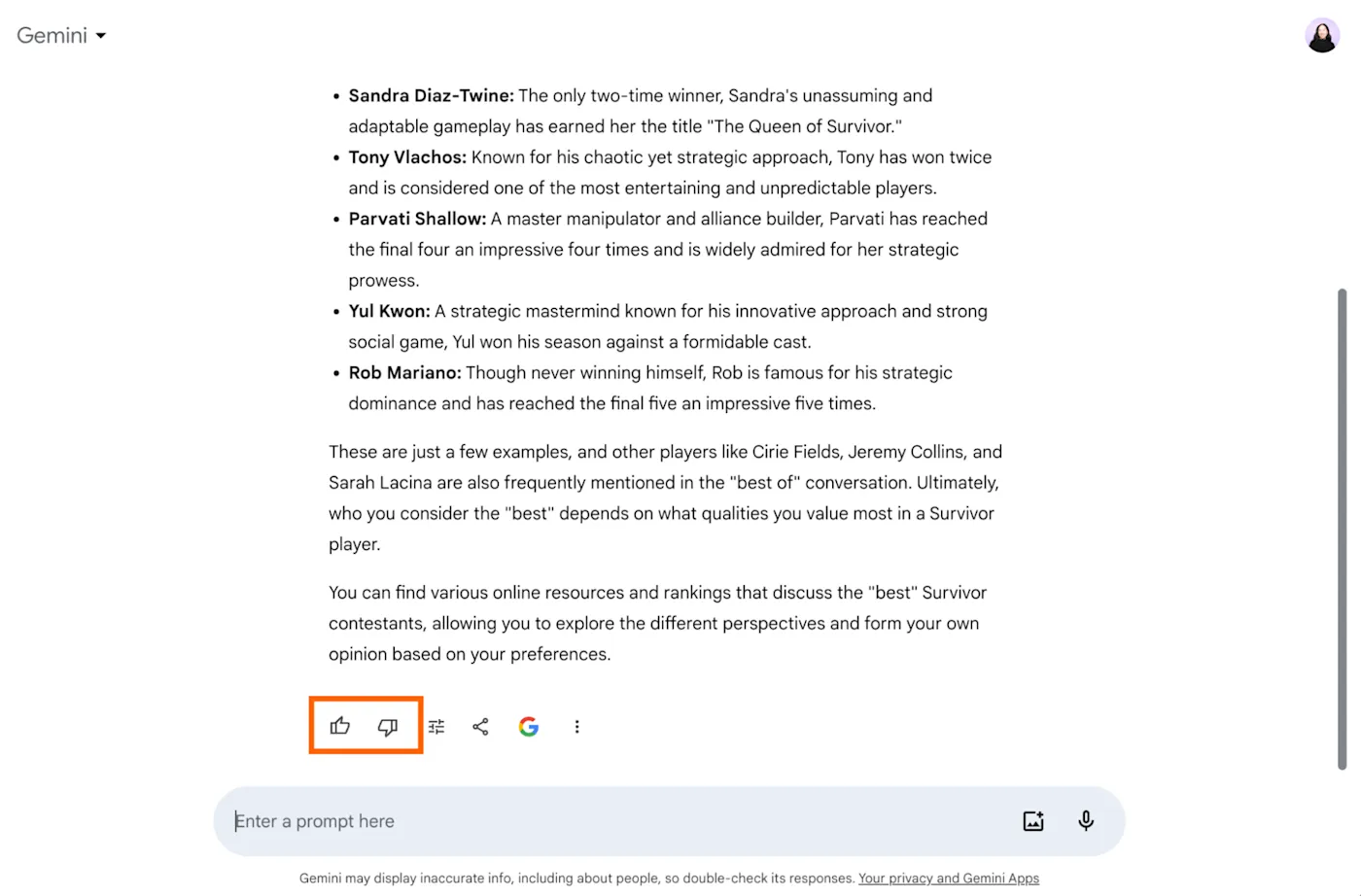
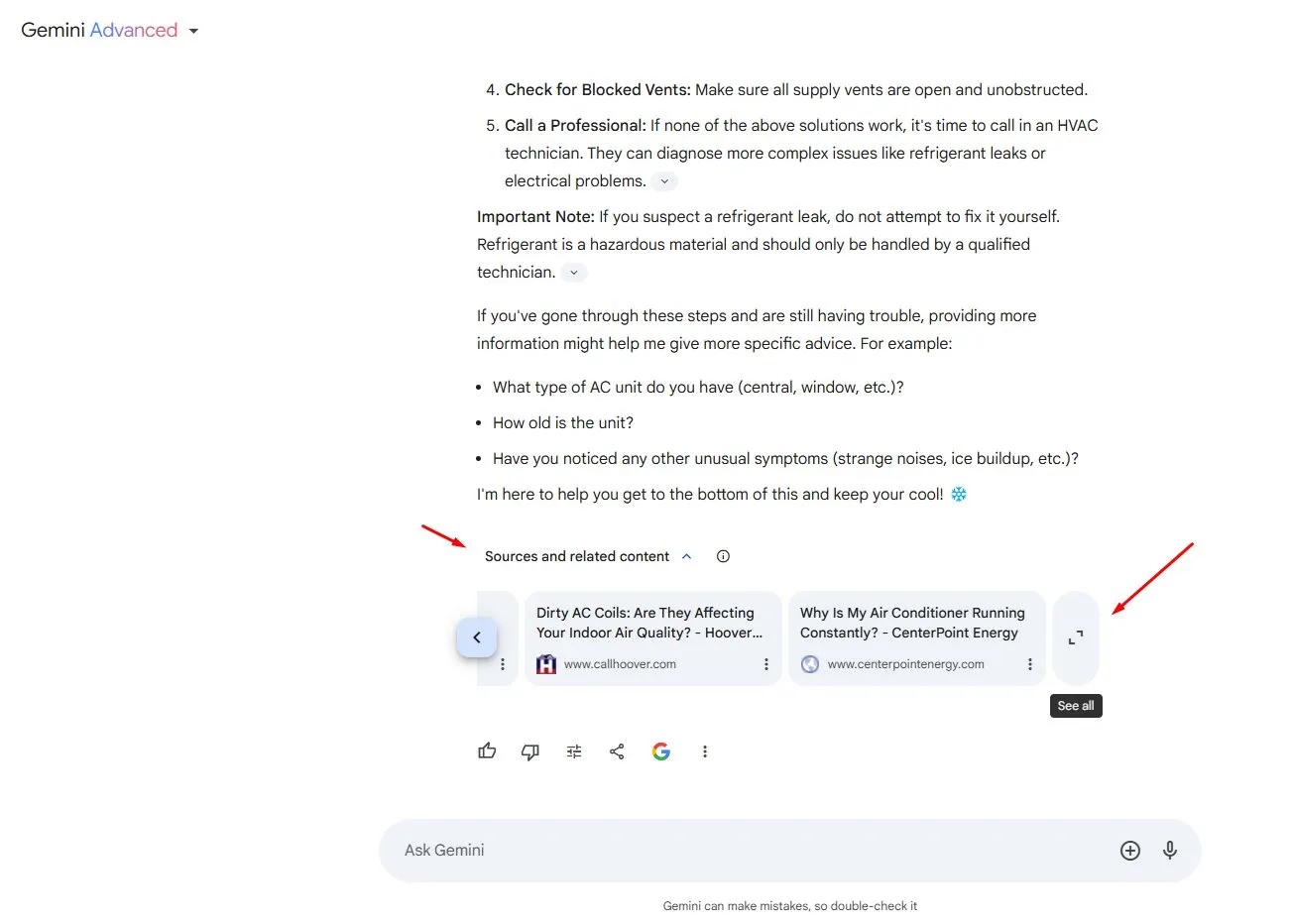
When Google’s AI Overview gives you an answer, there are little citation numbers or links embedded in the text, and a “Sources” section below or beside it. Gemini does the same thing. Click through on anything important.
What you’re looking for:
- Is the source a real, reputable site? A government website, a well-known news outlet, or the official documentation for a software product is a good sign. A blog post from a site you’ve never heard of with no author name is a yellow flag.
- Does the source actually say what the AI claims it says? Read a paragraph or two. Sometimes the AI slightly misinterprets or overstates what the source says.
- Is the information recent? Especially for tech topics, a source from three years ago might be completely outdated.
This isn’t that different from how you should have always been evaluating regular Google results. The AI just adds a layer — it reads them for you and gives you the highlights. But you still want to do your own gut-check on anything that matters.
The bottom line: The sources section in an AI answer is there for a reason. Get in the habit of glancing at it, especially before acting on anything important or sharing the information with someone else.
Watch Out for Phishing Links — Yes, Even in AI Results
This one doesn’t get talked about enough, so I want to be direct about it.
AI search results still contain links. And just like with regular Google results, some of those links can be dangerous.
Phishing sites — fake websites designed to steal your login information or install malicious software — do show up in search results sometimes. They’re designed to look legitimate. A site can have a perfectly reasonable-looking address at first glance, but be a clever fake. This was a risk with regular Google before AI, and it’s still a risk now.
Before clicking any link from an AI result, take two seconds to check the address. Here’s what to look for:
- Hover before you click. On a computer, hover your mouse over the link and look at the address that appears at the bottom of your browser. On a phone, press and hold the link to see the full address.
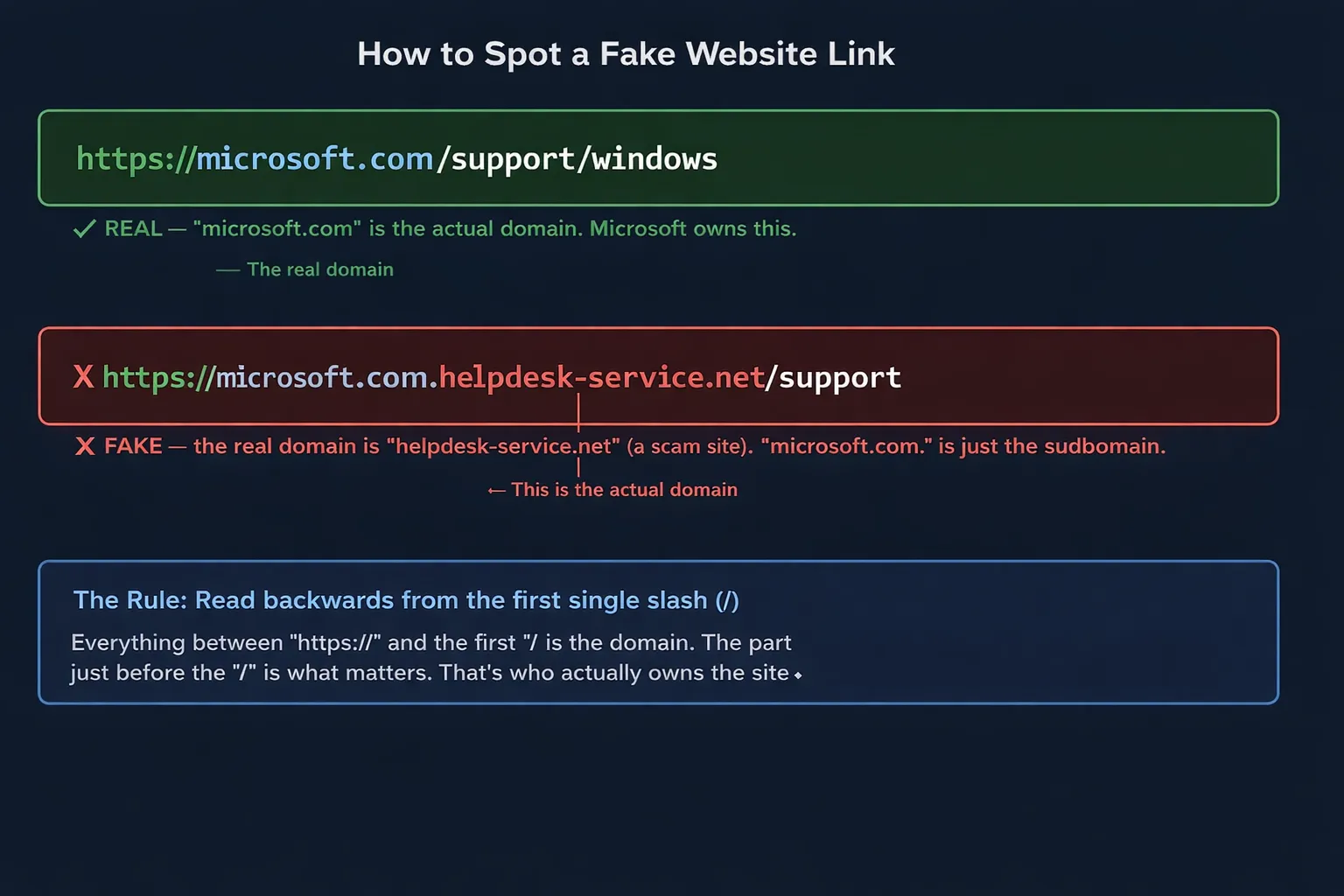
- Look at the domain carefully. The domain is the part before the first single slash — e.g.,
microsoft.cominhttps://microsoft.com/support/article. Watch for tricky variations:micros0ft.com,microsoft-support.com, ormicrosoft.com.helpdesk-service.net(that last one isn’t Microsoft’s website — it’s whatever ownshelpdesk-service.net). - When in doubt, go direct. If you’re trying to get to your bank, your software vendor, or a government site — just type the address directly into your browser. Don’t click a link from search results.
Watch out: AI-generated answers can include links to sites the AI doesn’t “know” are fake. The AI isn’t checking whether a site is legitimate — it’s just surfacing what it found. The same critical eye you’d use on any link applies here.
This Is Worth Getting Comfortable With
I know change is annoying. Especially with technology. Especially when the old way worked fine.
But I genuinely think this one is worth the small learning curve. AI search cuts down the number of tabs you have to open. It lets you describe situations in plain language instead of trying to phrase them as search keywords. And for a business owner who’s already stretched thin, anything that gets you a useful answer faster is a real win.
Start with Gemini at gemini.google.com. Ask it something you’d normally Google. Describe your situation the way you’d explain it to a person. See how it compares to the old way.
You don’t have to trust it blindly. But it’s worth getting to know.